Which Photo Editing Apps Create Natural-Looking Fashion and Apparel Images?
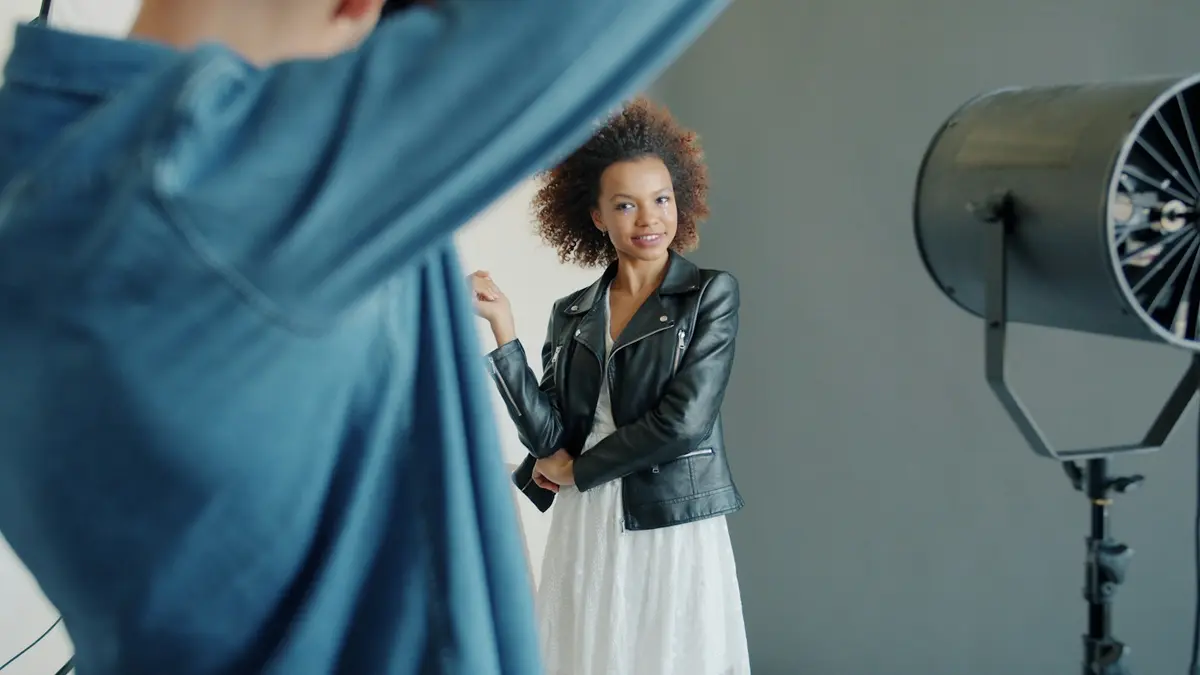
Table of Contents
Why Fashion Photo Edits Can Look Unconvincing
Fashion image editing should clarify the garment, not make the retouching itself the subject. A convincing apparel image still communicates how a fabric falls, where it catches light, how much texture it has, and what its color looks like under plausible lighting. If these cues are changed too heavily, the viewer may no longer trust the image as a representation of the product.
A common problem is treating a fashion photograph like a dramatic portrait or social-media image. Strong color grading can shift a navy wool, cream knit, or red satin away from its real appearance. Excessive smoothing can remove skin texture and also make adjacent fabric look unnaturally soft. Heavy clarity, sharpening, or local contrast may create harsh seams, false-looking weave detail, and bright outlines around the model.
Natural fashion retouching is usually selective. It corrects distractions, balances exposure, and improves visual consistency while retaining the evidence that the person is wearing real clothing in a real environment. The best result should allow buyers, designers, merchandisers, and editors to focus on fit, color, construction, and styling rather than on visible processing.
Why Image Quality Starts Before Post-Processing
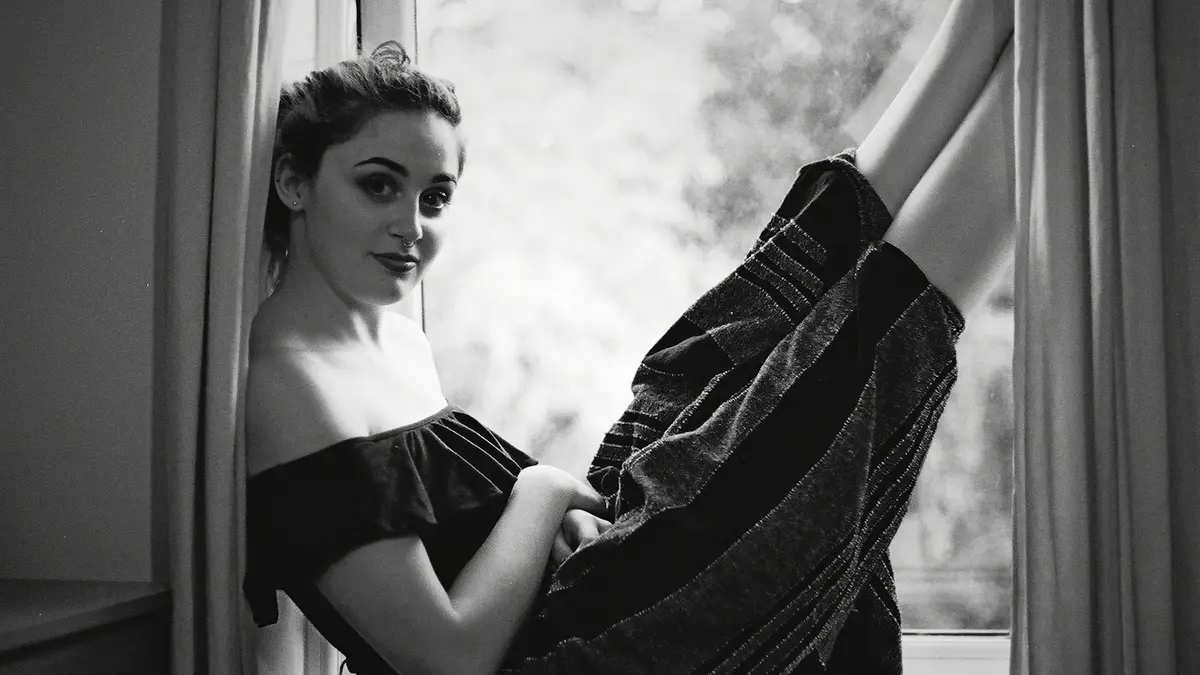
Careful capture reduces the need for aggressive correction. Soft window light, open shade, and overcast daylight generally create gentler transitions between highlights and shadows than direct midday sun. This makes it easier to preserve both facial detail and textile surface information, especially in pale garments, glossy materials, dark denim, or fabrics with visible pile and texture.
Source: Unsplash
Direct sunlight is not always unsuitable for fashion photography, but it requires more control. Hard light can produce dense shadows beneath collars and folds, clipped highlights on satin or coated fabrics, and strong contrast across a model’s face. Once highlight detail is lost, editing software cannot reliably recreate the original material information.
When possible, capture in RAW rather than JPEG. RAW files generally retain more tonal information and offer more flexibility for recovering bright and dark areas. JPEG files are already processed in camera and can show artifacts, color shifts, or banding sooner when exposure and white balance are adjusted substantially. RAW does not correct poor lighting, but it gives the editor more room to make restrained corrections.
White balance is equally important. An incorrect color temperature can make white shirts look blue, ivory fabrics look yellow, or skin look overly warm or gray. Establish a believable neutral balance before making creative decisions. If accurate product color is essential, work from a controlled lighting setup and compare the edited image with the actual garment or approved color reference where available.
Photo Editing Apps for Natural Apparel Imagery
The most useful photo editing apps for fashion photography are not necessarily those with the most dramatic effects. A suitable tool should support measured exposure correction, dependable color control, localized adjustments, and an export workflow appropriate to the intended channel. The right choice also depends on whether the image is editorial, ecommerce, social content, line-sheet material, or an internal product record.
Some applications are built for detailed image development, while others simplify batch processing, portrait cleanup, or quick product-image preparation. The following options differ in workflow, automation, retouching method, and the degree of manual control available.
Adobe Lightroom Mobile
Adobe Lightroom Mobile is well suited to a structured fashion-editing workflow. Its core controls allow the editor to set exposure and white balance first, then refine contrast, highlights, shadows, whites, and blacks. This sequence helps preserve the tonal range needed to show folds, seams, knit definition, and differences between matte and reflective surfaces.
On supported devices and plans, Lightroom’s masking tools can isolate areas such as a subject, background, or sky. For apparel images, localized adjustments are useful when the garment needs modest texture or shadow recovery but the model’s skin should remain soft and realistic. A mask can also help brighten a backdrop without changing the garment’s color or increasing noise across the entire frame.
Lightroom includes curve-based tonal controls and supports RAW editing on compatible devices. Use the tone curve conservatively: a mild adjustment can add depth, while an aggressive S-curve can crush shadow detail in dark fabrics or clip highlights in pale textiles. Lightroom Mobile is a strong option when garment color, local corrections, and repeatable editing settings require close attention.
RetouchMe
RetouchMe uses a submission-based service model in which images are sent for retouching according to the user’s selected requests. This can be useful when a team needs human review rather than relying only on automatic filters. For commercial fashion imagery, human judgment can be valuable when decisions involve wrinkle cleanup, removal of distracting background elements, or limited skin correction that must remain consistent across a campaign.
The service may be appropriate for users who do not have in-house retouching capacity or who need assistance with a small number of carefully selected images. Clear instructions are essential. Specify which garment details must remain unchanged, whether wrinkles are part of the intended drape, and how much skin correction is acceptable. Do not ask for broad “enhancement” without defining the required result.
RetouchMe has also promoted video retouching services, but available services, turnaround options, pricing, and platform features can change. Check the current service menu before building it into a production workflow. Compared with direct editing apps, human retouching involves trade-offs in cost, upload time, revision management, and delivery speed.
Snapseed
Snapseed is an accessible mobile editing option for straightforward fashion and apparel corrections. Its Selective tool can be useful for localized changes when a specific area needs adjustment without affecting the entire image. For example, an editor may make a limited brightness or saturation correction to a garment area while leaving the background and skin largely unchanged.
The Details controls separate structure from sharpening, which can help define fabric surfaces when used carefully. Structure can make a twill, rib knit, embroidery, or denim texture more visible, but too much can exaggerate pores, wrinkles, lint, and compression artifacts. Apply detail adjustments primarily to clothing, not equally across a portrait.
Snapseed has been widely available as a free editor and includes tools such as Selective and Details in its established workflow, but app availability and individual controls should be confirmed for the current version and operating system. It is best suited to fast, restrained edits rather than complex multi-image commercial retouching.
Darkroom
Darkroom is designed around a streamlined editing workflow and can be useful for teams handling a consistent series of apparel images. Where supported on current Apple platforms, its workflow can include batch editing and color-focused controls, helping users apply a coherent baseline to images from the same shoot.
Selective color adjustment is particularly relevant to apparel work. Changing the hue, brightness, or saturation of a targeted color range can help correct a garment that appears slightly too warm, dull, or saturated under a given lighting condition. The advantage is that the editor can make a controlled garment-related correction without shifting every color in the photograph.
This approach still requires care. A red garment and a model’s lips, or a beige coat and a warm background, may occupy similar color ranges. Review the image at full size after any targeted adjustment. Darkroom can be practical for ecommerce and lookbook workflows, but current device compatibility, subscription tiers, batch features, and color tools should be checked before standardizing a team process.
Facetune
Facetune makes portrait retouching accessible, which can be helpful for limited cleanup but also creates a risk of over-editing fashion images. Smoothing, reshaping, whitening, and similar adjustments can quickly alter the relationship between the model, the garment, and the intended styling. Overly polished skin can make nearby textile texture look artificial by comparison.
Use portrait-oriented tools only for restrained tasks, such as removing a temporary blemish, reducing a minor distraction, or balancing clearly uneven lighting. Keep natural pores, facial contours, and expression intact. Avoid changing body proportions or facial structure when the image is intended to communicate garment fit, silhouette, or styling accurately.
Facetune’s available retouching and relighting features may vary by platform and version. Before using automated or AI-assisted functions in commercial work, inspect the result closely for altered edges, distorted jewellery, changed garment details, or unrealistic transitions around hair and skin.
Adobe Express
Adobe Express is a simpler browser and mobile option for users who need clean, quick apparel images without the full control of a Lightroom-based workflow. It is particularly useful for basic tasks such as cropping, light correction, resizing, and preparing files for product listings, social posts, or marketing layouts.
Its simplified controls can encourage a disciplined workflow: correct the crop, improve exposure modestly, check white balance, and export at the required dimensions. Restrained presets may help maintain consistency, but they should not replace image-by-image review. A preset that works for a cotton shirt in daylight may not work for a glossy dress under indoor lighting.
Adobe Express has offered image editing and background-related tools, but the exact availability of background cleanup, resizing options, and mobile features can vary by product version and account level. It is best positioned for apparel sellers needing efficient, presentable images rather than detailed textile retouching.
Editing Adjustments That Matter Most for Garments
A natural apparel workflow follows an order that protects product accuracy. Begin with white balance, because every later color decision depends on a believable neutral base. Then correct overall exposure and evaluate whether the garment still shows detail in both its brighter and darker areas.
Source: Unsplash
Apply contrast carefully. Moderate contrast can separate the garment from the background and make folds easier to read, but excessive contrast can make dark fabrics block up and bright fabrics lose surface detail. Adjust highlights and shadows after the main exposure correction to recover information without creating a flat, gray appearance.
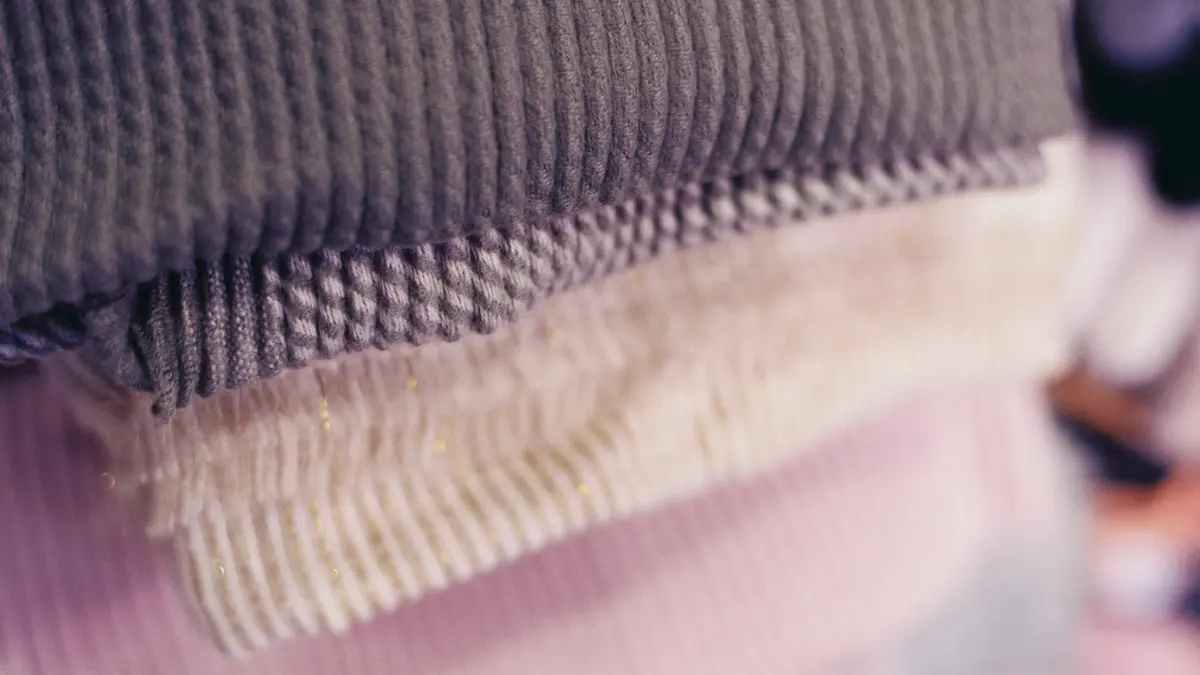
Texture and clarity are often more useful on clothing than on skin. A small increase can reveal weave, quilting, leather grain, or knit structure. However, these controls should be masked when possible. Apply fabric-specific adjustments to the garment and use separate, gentler treatment for skin. This avoids the common problem of a crisp jacket paired with harsh, over-defined skin.
Color grading belongs near the end of the workflow. Once exposure, white balance, and garment-specific color corrections are complete, a subtle grade can support the intended mood. For product-focused imagery, keep the grade weak enough that a customer can still distinguish black from charcoal, ivory from white, and the actual hue of a featured garment.
How Over-Editing Damages Fashion Images
Over-editing often begins after the image is already successful. An editor adds another preset, raises texture again, shifts color for more impact, then compensates with further changes. The resulting file may look striking at first glance but no longer represents the fabric, model, or lighting convincingly.
For many fashion images, a complete basic edit consists of exposure correction, accurate white balance, measured tonal adjustment, cropping, and minor cleanup. Extensive processing is not inherently wrong, particularly in conceptual editorial work, but it should be intentional and compatible with the purpose of the image.
Repeated sharpening can create halos around edges and seams. Strong texture may exaggerate lint and fabric defects. Saturation increases can make dyes appear inaccurate, while heavy color grading can compromise merchandising decisions. These problems are especially serious when photographs are used to support online product selection.
Before export, pause briefly and return to the image with fresh eyes. Compare it with the original capture and ask whether the edit improved readability or simply made the image more processed. If unsure, reduce the most recent adjustment rather than adding another correction.
Final Check: Does the Person and Garment Still Look Real?
The final review should test realism, not merely technical polish. Ask whether skin still has natural variation, whether facial features remain recognisable, and whether the garment retains believable color, texture, drape, and construction detail. Also inspect edges around hair, hands, hems, straps, and accessories, where automated tools often reveal errors.
View the image at both normal viewing size and close magnification. At normal size, assess overall balance and mood. At close size, look for halos, repeated patterns, smeared fabric texture, uneven masking, and distorted stitching. If the image begins to feel artificial, reduce the latest skin, texture, reshaping, or grading adjustments first.
Editorial judgment matters more than using every available feature. A restrained edit that accurately presents a garment is generally more useful than a technically elaborate result that creates doubt about the product.
Conclusion
Effective fashion photo editing improves clarity while retaining textile texture, believable color, realistic drape, and the personality of the person wearing the garment. Lightroom Mobile, Snapseed, Darkroom, Facetune, Adobe Express, and service-based options such as RetouchMe can each support part of that process when used with clear limits.
The best photo editing apps for fashion photography are ultimately the ones that help the editor control light and color without making the retouching visible. Start with strong capture, correct the fundamentals, separate garment and skin adjustments, and stop when the clothing looks accurate, appealing, and real.